Monday, November 12, 2012

Build Tools


Build tool allows developers and build managers to describe the build process also build tools help the programmer to build their project efficiently. 

Build tools are programs that automate the creation of executable applications from source code. Building incorporates compiling, linking and packaging the code into a usable or executable form.

Build process is repetitive process where programmer builds the project again and again to test the changes in the project code. While developing a project code changes needs to be test and the testing requires the build of the code and finally deploying on the server for testing. Build tools automate the repetitive process and allows the programmer to concentrate on the project development. It also reduces the overall build time. Build tools makes the build process just a single click work. 

In summary, a build tool provides a mechanism to describe the operations and structure of the build process. When the build tool is invoked it uses the description, examines the current state of affairs to determine the steps that need to be executed and in which order, and then manages the execution of those steps.

There are many build tools are available. Followings are few Java build tools available.
  • Rake
  • Ant
  • Maven

Thursday, September 27, 2012

waitForPageToLoad in Selenium 2.0/WebDriver

The following method can be used to wait until the expected page title appears.


public void waitForPageToLoad(String title){
     Integer i = 1;
     for(i=1;i<=100;i++) {
          if (driver.getTitle().equals(title)) {
               break;
          }
          Thread.sleep(10000);
     }
}
 

Wednesday, July 4, 2012

Encoding detector

http://code.google.com/p/juniversalchardet/

import org.mozilla.universalchardet.UniversalDetector;
 
public class TestDetector {
 
public static void main(String[] args) throws java.io.IOException {
   
byte[] buf = new byte[4096];
   
String fileName = args[0];
    java
.io.FileInputStream fis = new java.io.FileInputStream(fileName);

   
// (1)
   
UniversalDetector detector = new UniversalDetector(null);

   
// (2)
   
int nread;
   
while ((nread = fis.read(buf)) > 0 && !detector.isDone()) {
      detector
.handleData(buf, 0, nread);
   
}
   
// (3)
    detector
.dataEnd();

   
// (4)
   
String encoding = detector.getDetectedCharset();
   
if (encoding != null) {
     
System.out.println("Detected encoding = " + encoding);
   
} else {
     
System.out.println("No encoding detected.");
   
}

   
// (5)
    detector
.reset();
 
} }

Friday, March 23, 2012

Handling Javascript Popups Using WebDriver

WebDriver has an inbuilt library for handling the JavaScript alerts, and capturing values from the dialogs. It has a class called Alert. The following actions can be captured by using a Alert class build in latest version of WebDriver


1. accept()
2. dismiss()
3. getText()
4. sendKeys()


1. accept()


This method can be used to click 'OK' button in a popup.
Ex: 


Clicking on OK for JavaScript Alert


Thursday, February 9, 2012

Maven Installation Instructions


1- Download Maven library from the following URL http://maven.apache.org/download.html. At the time of writing this tutorial the latest version of Maven is 2.0.9. Download apache-maven-2.0.9-bin.zip for Windows and apache-maven-2.0.9-bin.tar.gz from Linux platform.

2- Unzip the file at some proper location (in my case its C:\Program Files\Apache Software Foundation\apache-maven-2.0.9).

3- Make sure your JAVA_HOME environment variable is set to java home directory.

4- You need to setup two environment variables for Maven

a. M2_HOME

b. M2

For Windows:

Go to My Computer > Properties >Advance tab > Environment variables > Under User variables > New and provide both M2_HOME and M2 environment variables as shown in the following figures

5- You also need to update the PATH environment variable in order to access Maven commands from console. Go to My computer > properties > Advance tab > Click Environment Variable Button > under system variables find PATH variable > Click Edit and at the end provide the path up to the bin folder of Maven. In my case it is C:\Program Files\Apache Software Foundation\apache-maven-2.0.9\bin

6- To verify that every thing is setup according to the plan open console and type mvn –version. You should see something similar to the following figure.

Monday, October 3, 2011

Arrays in Java

Background:

Suppose we have here three variables of type int with different identifiers for each variable.
int number1;
int number2;
int number3;

number1 = 1;
number2 = 2;
number3 = 3;

As you can see, it seems like a tedious task in order to just initialize and use the variables especially if they are used for the same purpose.

Definition:
  • An array is a systematic arrangement of objects, usually in rows and columns.
  • An array is a container object that holds a fixed number of values of a single type. The length of an array is established when the array is created. After creation, its length is fixed.
  • An array is a very common type of data structure where in all elements must be of the same data type. Once defined , the size of an array is fixed and cannot increase to accommodate more elements. The first element of an array starts with zero.
  • In Java and other programming languages, there is one capability wherein we can use one variable to store a list of data and manipulate them more efficiently. This type of variable is called an array. An array stores multiple data items of the same data type, in a contiguous block of memory, divided into a number of slots.
Declaring Arrays:

Like all other variables in Java, an array must have a specific type like byte, int, String or double. Only variables of the appropriate type can be stored in an array. One array cannot store both ints and Strings, for instance.

Like all other variables in Java an array must be declared. To declare an array, write the data type, followed by a set of square brackets[], followed by the identifier name.

Syntax:

<elementType>[] <arrayName>;
                   or
<elementType> <arrayName>[];

Here are some examples:

int[] k;
float[] yt;
String[] names;

This says that k is an array of ints, yt is an array of floats and names is an array of Strings. In other words you declare an array like you declare any other variable except that you append brackets to the end of the type.

You also have the option to append the brackets to the variable instead of the type.

int k[];
float yt[];
String names[];

The [] may appear as part of the type at the beginning of the declaration, or as part of the declarator for a particular variable, or both, as in this example:

byte[] rowvector, colvector, matrix[];
This declaration is equivalent to:
byte rowvector[], colvector[], matrix[][];
Once an array object is created, its length never changes. To make an array variable refer to an array of different length, a reference to a different array must be assigned to the variable.
However, convention discourages this form; the brackets identify the array type and should appear with the type designation.

Array Instantiation:

After declaring, we must create the array and specify its length with a constructor statement. Declaring arrays merely says what kind of values the array will hold. It does not create them. Java arrays are objects, and like any other object you use the new keyword to create them. When you create an array, you must tell the compiler how many components will be stored in it.

Note:
Instantiation: In Java, this means creation
Constructor: In order to instantiate an object, we need to use a constructor for this. A constructor is a method that is called to create a certain object.

Arrays can be created using the new operator or by declaring a static initializer. The new operator specifies the size of the array.

Syntax:

<arrayName> = new <elementType>[<noOfElements>];

Example:

intArray = new int[10];     // Defines that intArray will store 10 integer values
int[] c, d;         // declare references to array c and d
c = new int [ 4 ];         // allocate memory for the 4 elements in array c
d = new int [ 125 ];     // allocate memory for the 125 elements in array d
byte[] b = new byte [ 100 ]; // declare and allocate memory for array b

An array intializer may be any arbitrary expression.

int c = 15;
int[] primes = { 1, 2, 3, 5, 7, 9, 11 };
int[] a = { 1, primes[2], c, (int)Math.pow(2,2) };

When memory is allocated for an array, the elements are automatically initialized to their default values: zero for all numeric primitive data types, false for boolean variables and null for references.

As with all objects, if the array reference (object reference) is assigned a null value, then the garbage collector will reclaim the dereferenced (unused) memory.

    Friday, May 6, 2011

    Selenium Frameworks

    Followings are the various automation frameworks available which can be used with Selenium Web Automation tool depending on the requirements


    1. Keyword Driven Framework
    2. Data Driven Framework
    3. SAJ (Selenium Ant JUnit) framewrok
    4. SAT (Selenium Ant TestNG) framework
    5. SIMPLIUM 
    6. Tellrium
    7. Robot Framework

    Monday, May 2, 2011

    Differences between HTTP and HTTPS protocols


    HTTP:
    • HTTP stands for Hyper Text Transfer Protocol. 
    • HTTP is a system for transmitting and receiving information across the internet.
    • HTTP is the set of rules for transferring files (test, graphic images, sound, video and other multimedia files) on the World Wide Web.
    • HTTP functions as a request-response protocol in the client-server computing model.
    • In HTTP, a web browser, for example acts as a client, while an application running on a computer hosting a web site functions as a server. The client submits an HTTP request message to the server. The server, which stores content, or provides resources, such as HTML files, or performs other functions on behalf of the client, returns a response message to the client. A response contains completion status information about the request and any content requested by the client in its message body.
    • HTTP is an Application Layer protocol designed within the framework of the Internet Protocol Suite
    HTTPS:

    HTTPS (Hypertext Transfer Protocol Secure) is a combination of the HyperText Transfer Protocol with the SSL (Secure Socket Layer)/TLS protocol to provide encrypted communication and secure identification of a network web server.

    Differences Between HTTP and HTTPS Protocols:
    • HTTPS connects on port 443, while HTTP is on port 80
    • HTTPS encrypts the data sent and received with SSL, while HTTP sends it all as plain text

    Monday, March 21, 2011

    Date Function in Java

    Getting the current Date-time:
    public String getCuurentDateTime(){
    DateFormat dateFormat = new SimpleDateFormat("yyyy/MM/dd HH:mm:ss");
    Calendar cal = Calendar.getInstance();
    String cal2 = dateFormat.format(cal.getTime());
    return cal2;
    

    Monday, March 14, 2011

    Finding the port number of a SQL Server


    There are a couple of ways of finding this information.
    1) Using the GUI: In SQL Server 2000, you can use the Server Network Utility and in SQL Server 2005, you can use the SQL Server Configuration Manager.  Look under SQL Server 2005 Network Configuration and look at the TCP port for the TCP/IP protocol.
    2)  Check the error log.  You will see an entry like: “Server is listening on [ 'any' <ipv4> 1433].”  The last 4 numbers denote the TCP/IP port number that is being used by that particular instance of SQL Server.
    3)  Registry entry: HKLM\Software\Microsoft\MSSQLServer\MSSQLServer\SuperSocketNetLib\TCP
    and you will see TCPPort as one of the entries and it’s value represents the port number for that instance.  In case you are using a named instance, then the registry entry will be: HKLM\Software\Microsoft\Microsoft SQL Server\<name of the instance>\MSSQLServer\SuperSocketNetLib\TCP
    4) Using the extended stored procedure xp_regread, you can find out the value of the TcpPort by using SQL.  Example:
    DECLARE @tcp_port nvarchar(5)
    EXEC xp_regread
    @rootkey    =    'HKEY_LOCAL_MACHINE',
    @key        =    'SOFTWARE\MICROSOFT\MSSQLSERVER\MSSQLSERVER\SUPERSOCKETNETLIB\TCP',
    @value_name    =    'TcpPort',
    @value        =    @tcp_port OUTPUT
    select @tcp_port

    Wednesday, March 9, 2011

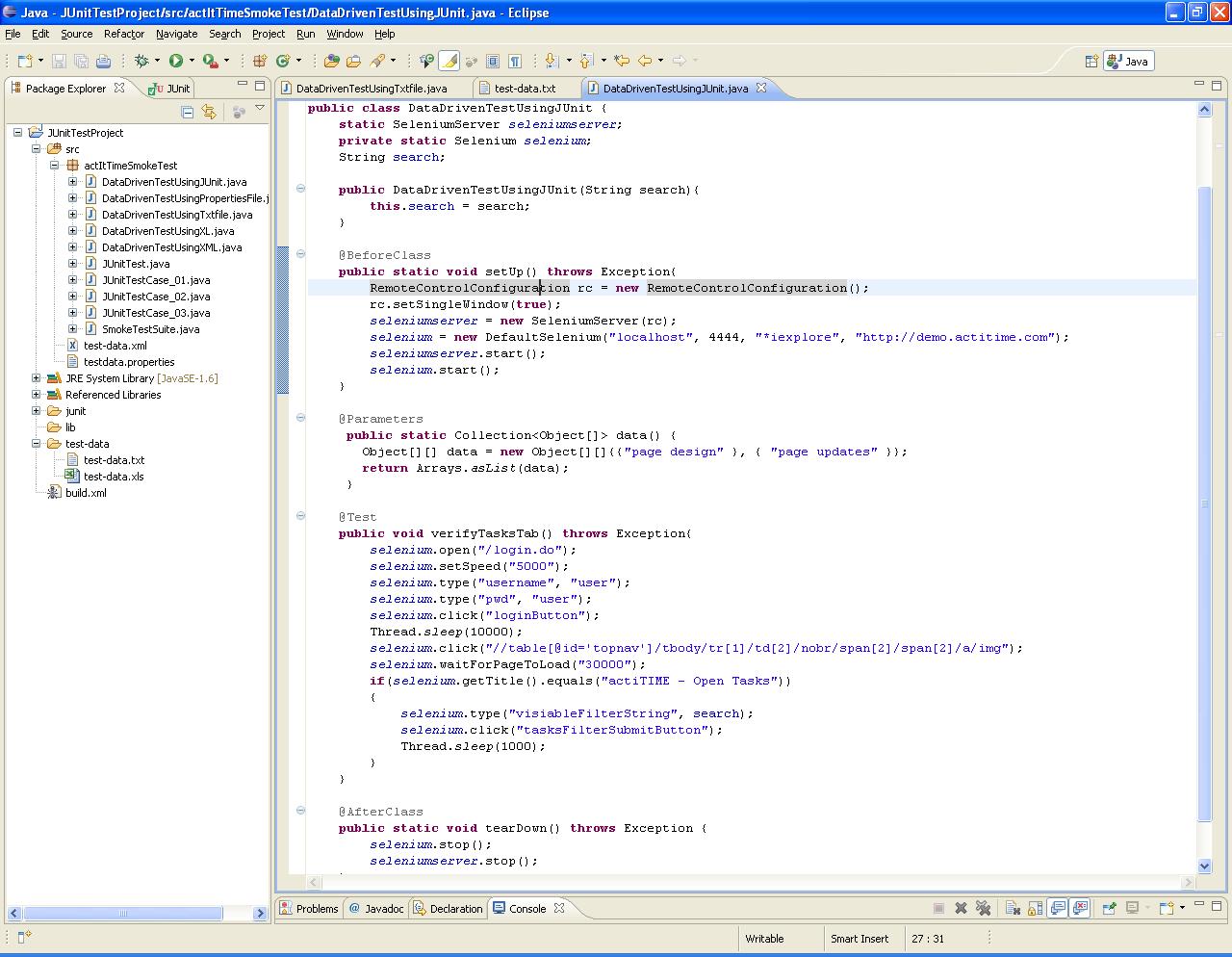
    Data Driven Test Using JUnit


    Following steps will guide you how to do data driven tests by using JUnit.

    1. Create a Java Project

    2. Create a JUnit Test case called "DataDrivenTestUsingJUnit"

    3. Add junit and selenium-server jar files to build path

    4. Copy the following script and run the test
    Figure: Data Driven Test using JUnit

    Data Driven Test Using Text file


    Following steps will guide you how to do data driven tests by using Text file.

    1. Create a Java Project

    2. Create a JUnit Test case called "DataDrivenTestUsingTxtfile"

    3. Add junit and selenium-server jar files to build path

    4. Create a folder called "test-data"

    5. Create a text file called test-data.txt" under test-data folder

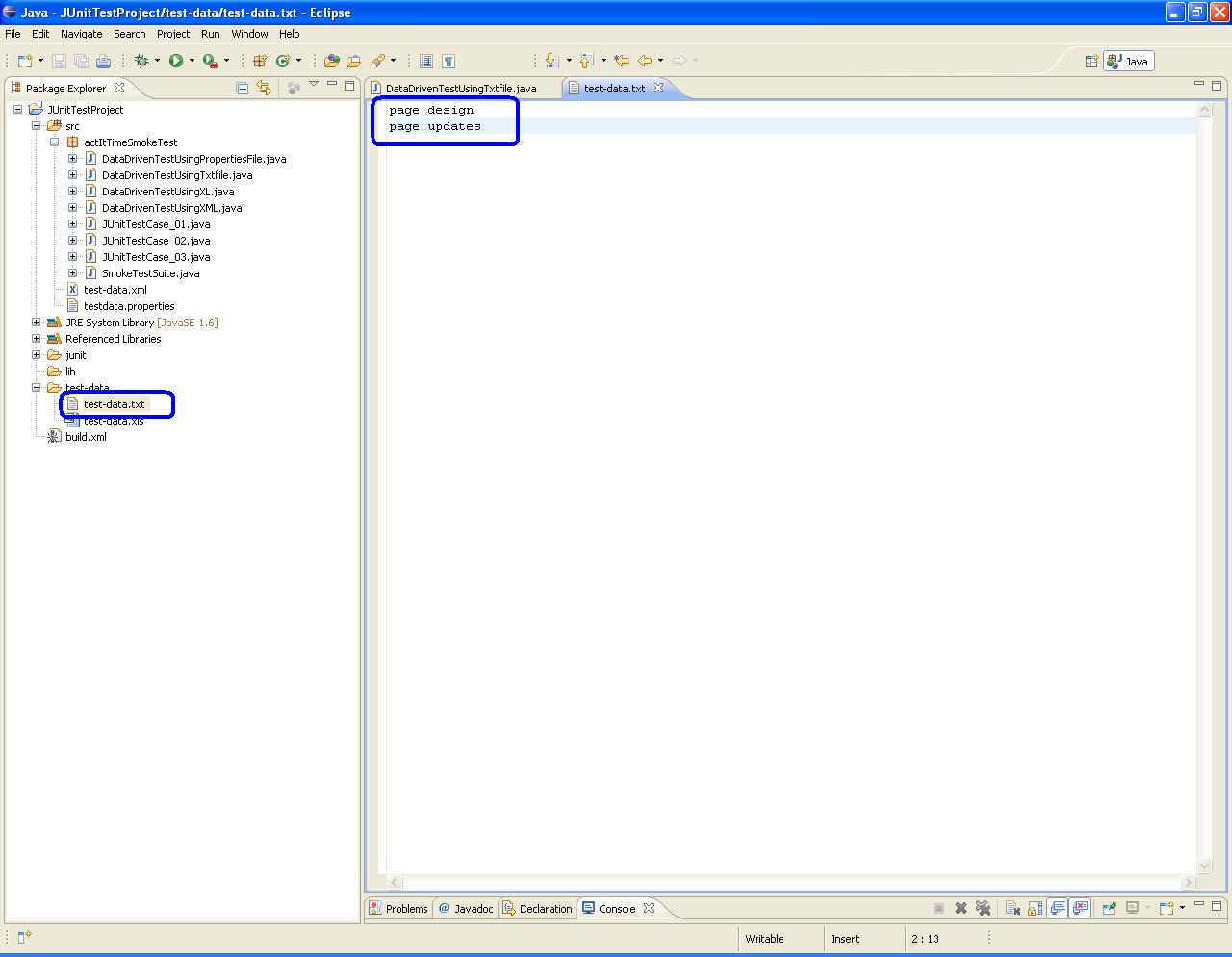
    6. Add followings in test-data.txt file - page design, page updates (one below the other as shown in the following figure)
    Figure: Test data in Text file
    7. Copy the following code and run the test script
    Figure: Data Driven Test Using Text file

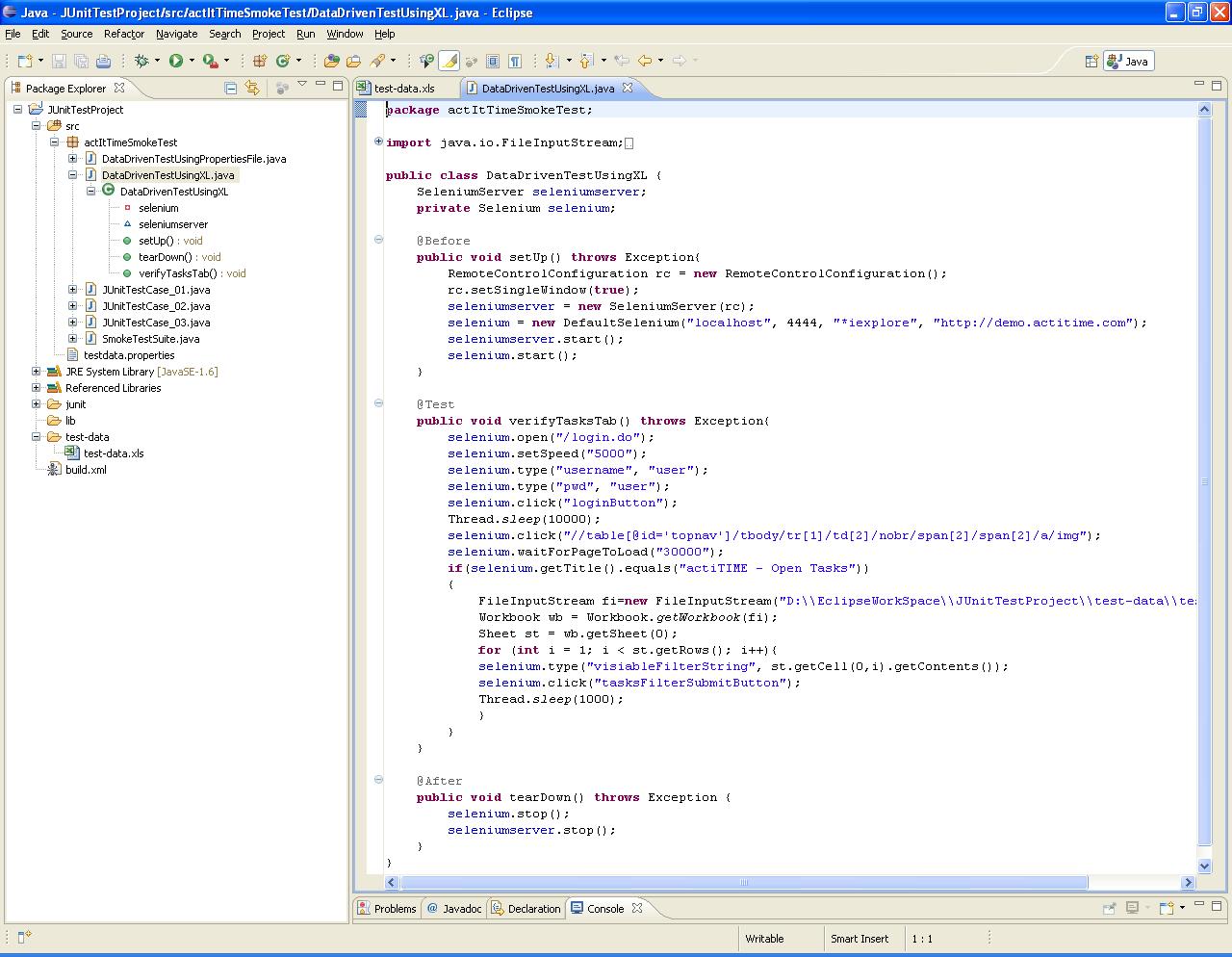
    Data Driven Test Using Excel file


    Following steps will guide you how to do data driven tests by using Excel file.

    1. Create a Java Project

    2. Create a JUnit Test case called "DataDrivenTestUsingXL"

    3. Add junit and selenium-server jar files to build path

    4. Create a folder called "test-data"

    5. Create a excel file called test-data.xls"

    6. Under "Sheet1" add the test data as shown below
    Figure: Test data in Excel file
    7. Copy the following code into your junit test file and run
    Figure: Data driven test using excel file


    Data Driven Test Using Properties file

    Following steps will guide you how to do data driven tests by using .properties file.

    1. Create a Java Project

    2. Create a JUnit Test case

    3. Add junit and selenium-server jar files to build path

    4. Now right click on the source folder and select New ->File

    5. Enter File name as "testdata.properties" and "Finish" button
    Figure: Creating properties file
    6. Now, double click on "testdata.properties" file and enter the following data - Filter_Task=page design,page updates
    Figure: Test data in properties file
    7. Now copy the below code from the following figure and run your JUnit test case
    Figure: Data Driven Test Using Properties File
    Reference: http://kirankanumuri.blogspot.com/2010/10/how-to-do-data-driven-testing.html

    Monday, March 7, 2011

    Generating JUnit Report

    1. Select File menu and click on "Export" option

    Figure: Export window
    2. Expand "General" node and select "Ant Buildfiles", click on "Next" button

    3. Select the project (let all default options), click on "Finish" button
    Figure: Ant Buildfiles
    4. build.xml file should be created under project folder

    5. Now we need to add junit jar file in Ant's "Global Entires"

    6. Select "Window" menu, click on "Preferences"

    7. In "Preferences" window, expand "Ant" root node, click on "Runtime"

    8. Click on "Classpath" tab, expand "Global Entires" 

    9. Click on "Add External JARs" button


    10. Navigate to your "eclipse" directory (where eclipse is installed). Select "plugins ->org.junit_3.8.2.v3_8_2_v20100427-1100" directory. Select junit.jar file

    11. Now right click on build.xml file and select Run As -> Ant Build.."

    12. In "Edit Configuration and launch" window, select "build", "SmokeTestSuite" and "junitreprot" checkboxes and click on "Run" button
    Figure: Edit Configuration


    13. All your test scripts will run and finally report will be generated under the same project directory under "junit" folder

    14. Click on "index.html", you will see the report 

    Friday, March 4, 2011

    Creating Selenium RC - JUnit Test Suite using Eclipse IDE

    1. Create JUnit test cases as illustrated here

    2. To create a JUnit test suite, right click on the project select New -> Class

    3. Enter the class name as SmokeTestSuite and click on "Finish" button

    4. Copy the following code and paste in the above class

    package actItTimeSmokeTest;

    import org.junit.runner.RunWith;
    import org.junit.runners.Suite;

    @RunWith(Suite.class)
    @Suite.SuiteClasses({JUnitTestCase_01.class, JUnitTestCase_02.class, JUnitTestCase_03.class})
    public class SmokeTestSuite {
    }

    5. To run the test suite, right click on the SmokeTestSuite file and select Run As -> JUnit Test

    6. The test suite file will run all the 3 tests and gives the results. Following is the JUnit test result for test suite
    Figure: JUnit Test Suite Results

    Thursday, March 3, 2011

    Running a Selenium RC - JUnit Test Case in Eclipse IDE

    1. Create a JUnit test case as illustrated here

    2. Select the test case which you want to run individually (.java file), right click on it.

    3. Select Run As -> JUnit Test (see below figure)
    Figure: Running JUnit Test Case
    4. The test results can be viewed under JUnit window (see below screen shot)
    Figure: JUnit Test Result

    Creating a Selenium RC - JUnit Test Case in Eclipse IDE

    1. Open Eclipse IDE
    2. Create a project
    3. Create a package
    4. Add JUnit, selenium-server jar files to build path
    5. Right click on the project and select New -> JUnit Test Case (as shown in following figure)
    Figure: JUnit Test case
    6. In the "New JUnit Test Case" window, enter "Source folder", "Package" and "Name". Here name is java class name.
    Figure: New JUnit Test Case
    7. Now, copy and paste the following code into your test case
    Figure: JUnitTestCase_01
    8. Similarly, create the following test cases
    Figure: JUnitTestCase_02
    Figure: JUnitTestCase_03

    Wednesday, March 2, 2011

    Adding JUnit Library to Eclipse Build Path

    1. Download JUnit jar file

    2. Open Eclipse IDE

    3. Create a Java Project if you have not already created (Refer here)

    4. Right click on the project and select "Properties"

    5. In "Properties" window, select "Java Build Path" from right side tree

    6. Click on "Libraries" tab

    7. Click on "Add External Jars" button (See the below figure)
    Figure: Build Path
    8. Move to the location where junitx.jar file is located and add, click on "OK" button

    9. A new node called "Referenced Libraries" must be created and JUnit jar file must be added into that as shown below
    Figure: JUnit jar fiel ubder Referenced Libraries
    Now, we can write JUnit test case.

    Monday, February 28, 2011

    Creating a Java Package in Eclipse IDE

    1. Run Eclipse IDE

    2. Create a new Java Project (Refer here)

    3. Right click on "src", select New -> Package
    Figure: New Package in Eclipse
    3. Enter package name and click on "Finish" button
    Figure: Java Package Wizard
    4. Now, Java package has been created
    Figure: Java Package