Showing posts with label Data Driven Test. Show all posts

Wednesday, March 9, 2011

Data Driven Test Using JUnit


Following steps will guide you how to do data driven tests by using JUnit.

1. Create a Java Project

2. Create a JUnit Test case called "DataDrivenTestUsingJUnit"

3. Add junit and selenium-server jar files to build path

4. Copy the following script and run the test
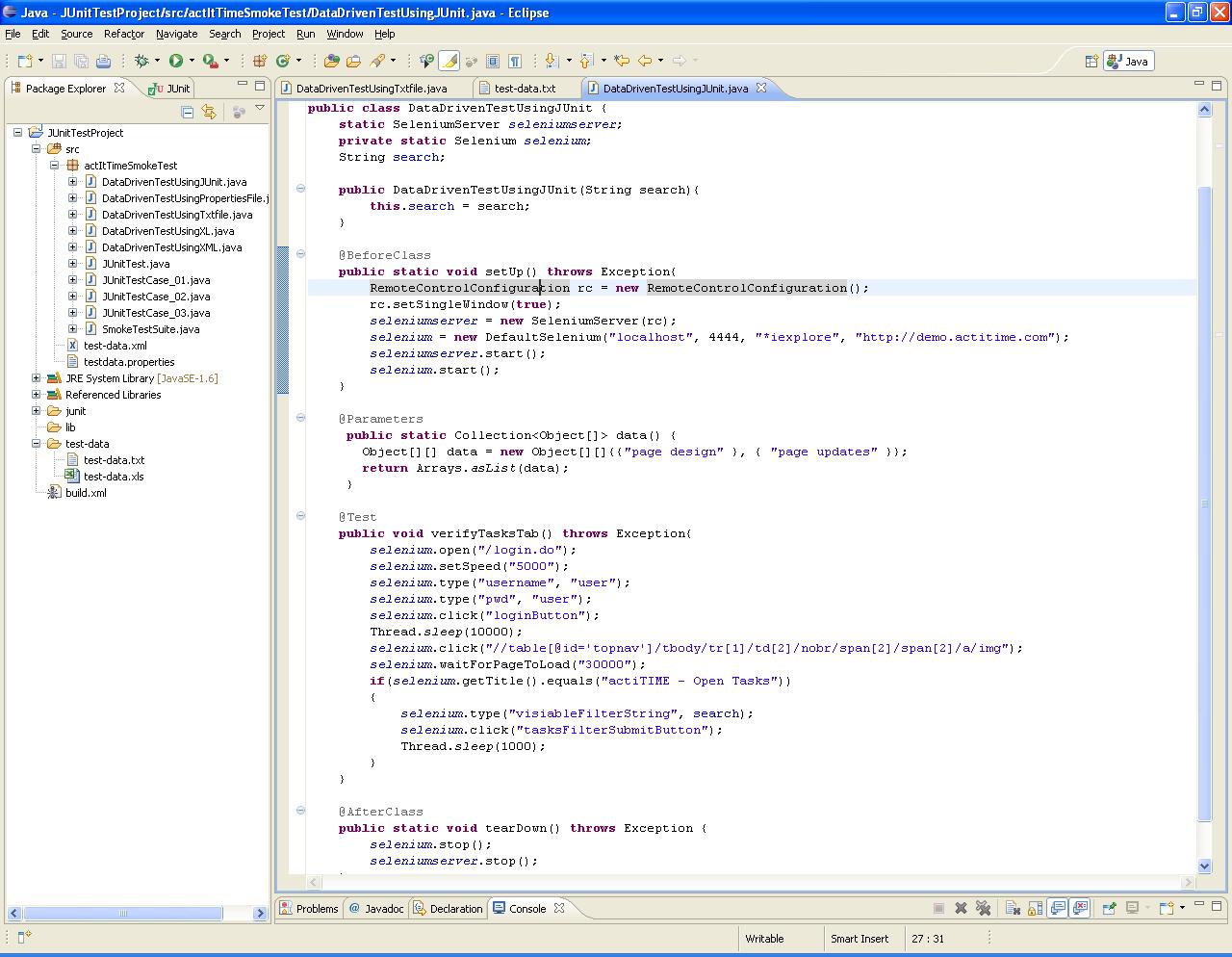
Figure: Data Driven Test using JUnit

Data Driven Test Using Text file


Following steps will guide you how to do data driven tests by using Text file.

1. Create a Java Project

2. Create a JUnit Test case called "DataDrivenTestUsingTxtfile"

3. Add junit and selenium-server jar files to build path

4. Create a folder called "test-data"

5. Create a text file called test-data.txt" under test-data folder

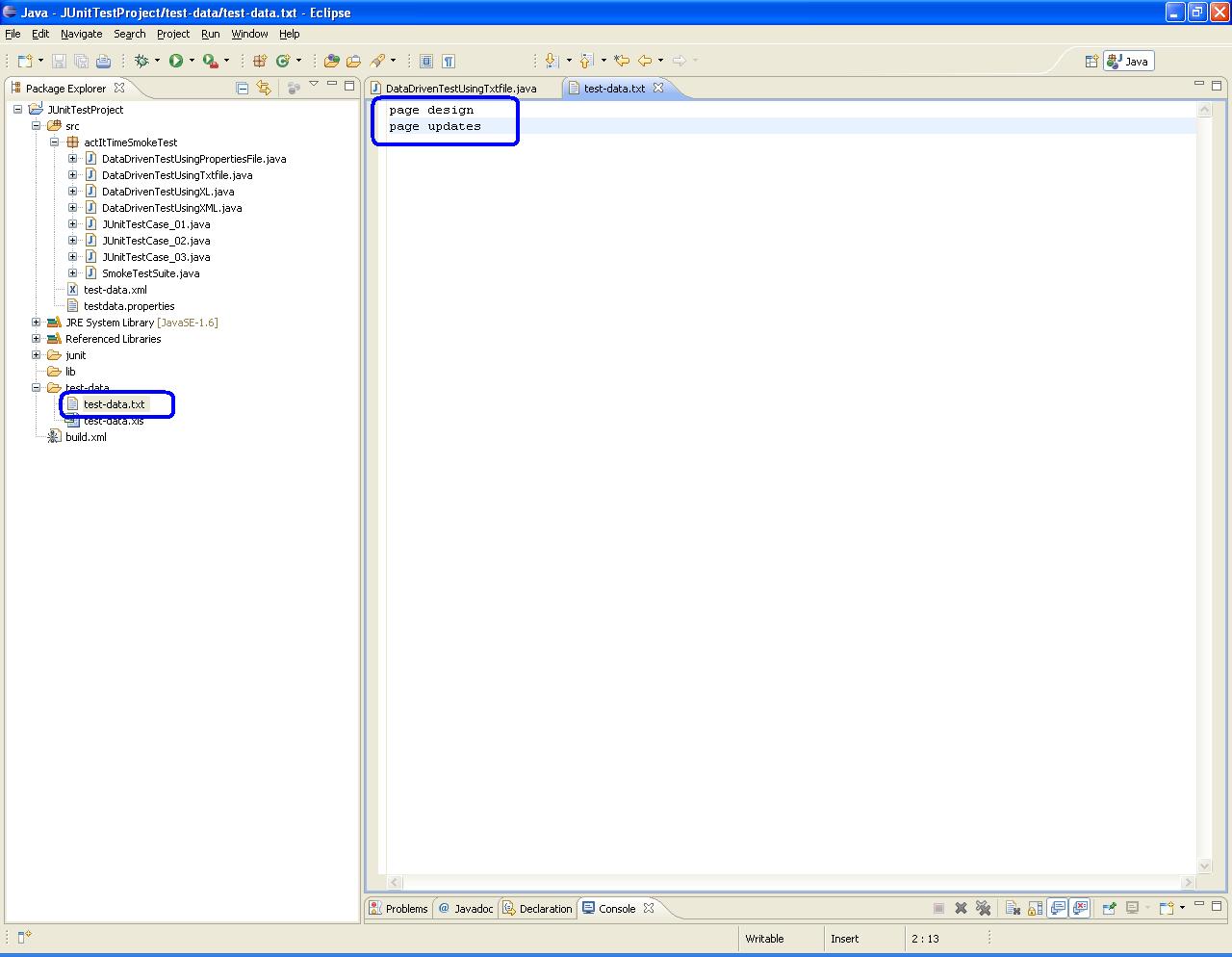
6. Add followings in test-data.txt file - page design, page updates (one below the other as shown in the following figure)
Figure: Test data in Text file
7. Copy the following code and run the test script
Figure: Data Driven Test Using Text file

Data Driven Test Using Excel file


Following steps will guide you how to do data driven tests by using Excel file.

1. Create a Java Project

2. Create a JUnit Test case called "DataDrivenTestUsingXL"

3. Add junit and selenium-server jar files to build path

4. Create a folder called "test-data"

5. Create a excel file called test-data.xls"

6. Under "Sheet1" add the test data as shown below
Figure: Test data in Excel file
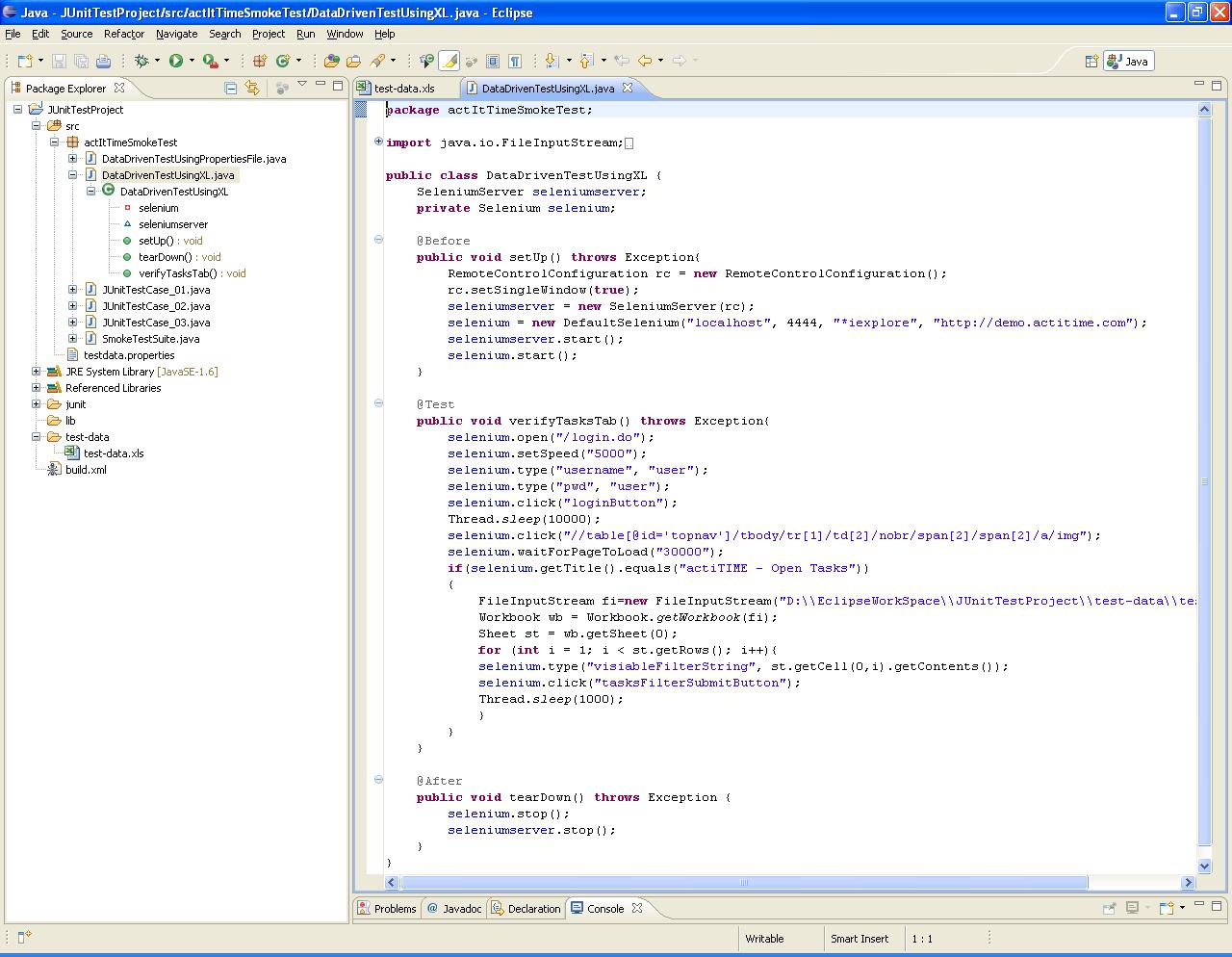
7. Copy the following code into your junit test file and run
Figure: Data driven test using excel file


Data Driven Test Using Properties file

Following steps will guide you how to do data driven tests by using .properties file.

1. Create a Java Project

2. Create a JUnit Test case

3. Add junit and selenium-server jar files to build path

4. Now right click on the source folder and select New ->File

5. Enter File name as "testdata.properties" and "Finish" button
Figure: Creating properties file
6. Now, double click on "testdata.properties" file and enter the following data - Filter_Task=page design,page updates
Figure: Test data in properties file
7. Now copy the below code from the following figure and run your JUnit test case
Figure: Data Driven Test Using Properties File
Reference: http://kirankanumuri.blogspot.com/2010/10/how-to-do-data-driven-testing.html